How to customize the domain your email notifications are sent from
Last updated: October 8, 2026
A custom domain helps your customers recognize the notifications they receive about their subscriptions and payments with your business. This article walks you through two setup options: using a Google (Gmail) domain or using an AWS SES domain.
Using a Google (Gmail) domain
Important: Gmail limits and blocks
Gmail has a sending limit of 500 emails per day on free accounts (2,000/day on Google Workspace), and Google may block access if it detects high volume, unusual behavior, or repeated automated attempts. If you're running in production, use AWS SES or another transactional provider instead.
Open an incognito tab in your browser.
Sign in with the Gmail account that will send the notifications.
Go to Rebill.
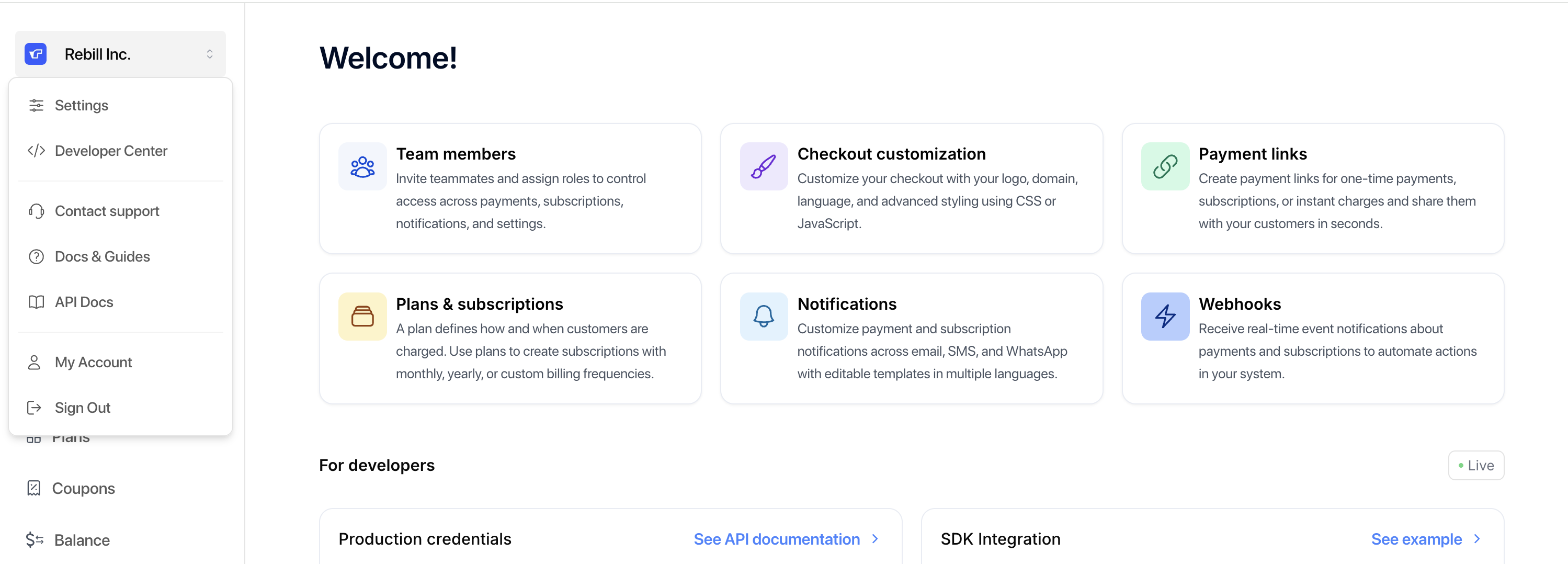
Click the organization selector in the top-left corner of your screen and go to Settings.
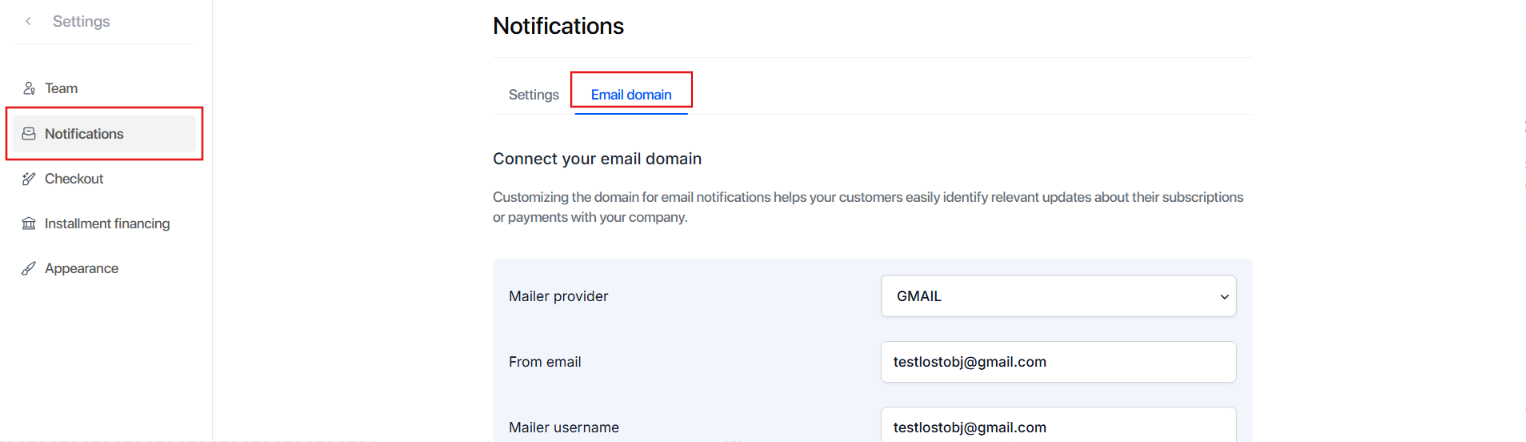
In the left sidebar, click Notifications and select the Email domain tab.
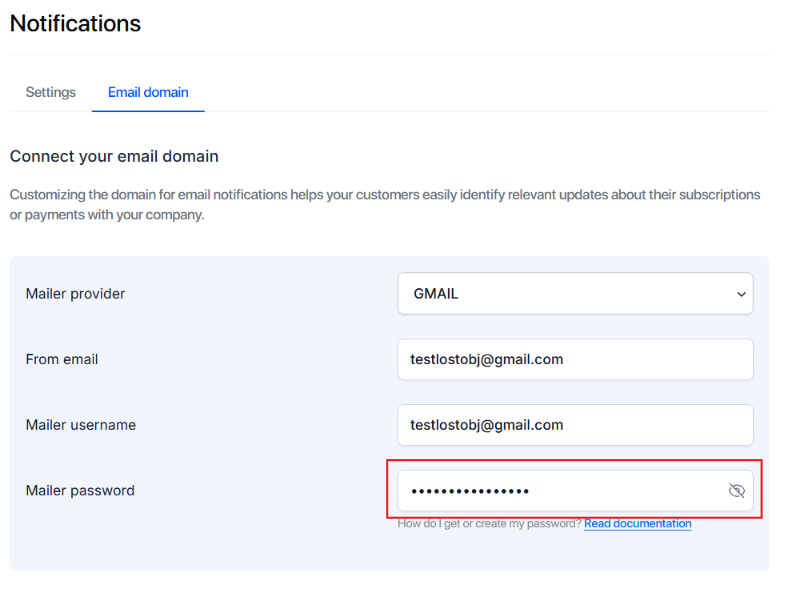
If you have 2FA enabled on your Gmail account, do not use your regular password. You'll need to create an app-specific password:
Open your Google Account.
In the search bar, type "App passwords".
Choose a name for the application (for example, "Rebill") and click Create.
Copy the 16-character code that's generated. You'll use it as the Email password in the next step.
Fill in the remaining fields:
Username: the email address the notifications will be sent from.
Sender name: the sender name your customers will see in their inbox.
Email password: the password of the Gmail account configured as sender. If you have 2FA enabled, use the app password you generated in the previous step.
Save your changes.
Using an AWS SES domain
Before you start
AWS SES requires two things on your AWS account before the integration with Rebill will work:
Verified identity: the sending email address or full domain must be verified in SES (Verified identities section of the SES console). Without verification, SES refuses to send.
Production access: by default, every new SES account is in sandbox mode, which only allows sending to email addresses that are also verified. To send to your real customers, request production access from the SES console.
If you skip either step, the configuration will save in Rebill but no emails will actually leave SES.
Select AWS as the email provider in the first dropdown and fill in the fields:
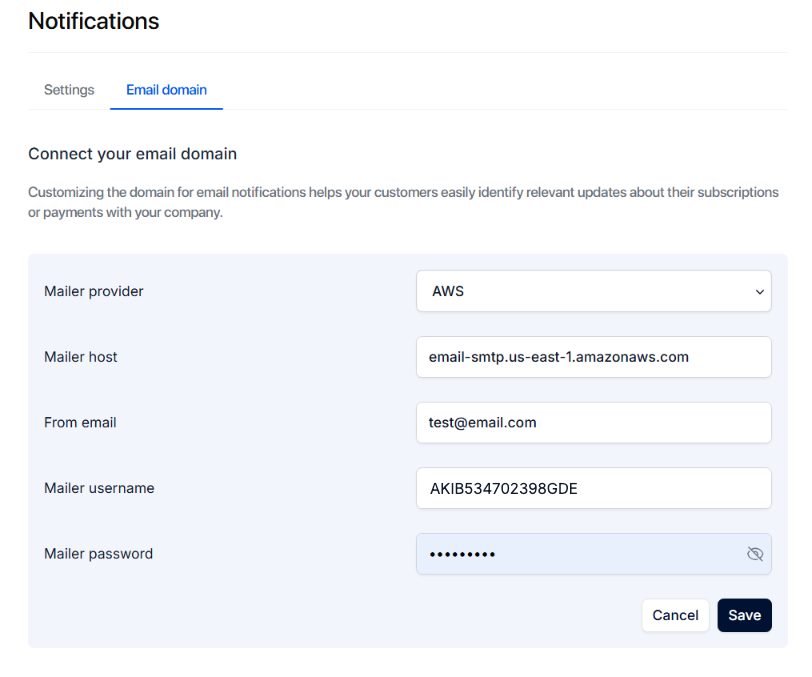
Email username: a string in the format
AKIB534702398GDEused to connect to AWS SES.
Sender email: the email address the notifications will be sent from.
Sender name: the sender name your customers will see.
Email password: the password of the email account to use.
Email host: the host used to send emails. Example:
email-smtp.us-east-1.amazonaws.com.
Save your changes.
Recommended: verify the setup
After saving, send a test email, for example by creating a test subscription or triggering a manual notification from the dashboard, to confirm the message arrives from your custom domain. A quick test right after setup avoids surprises later when real notifications go out to your customers.
Need help?
If you run into trouble setting up your custom domain, contact us at support@rebill.com.